Some of the most common ways to hide IP and safeguard your online identity are discussed below:
1. Using a VPN Proxy – Safe and Secure Way to Hide IP
Using a trusted VPN proxy service is the best way to conceal your IP address during your online activities. Here is a list of most popular and highly reliable VPN proxy services that will hide your IP address:
1. Hide My Ass VPN – Hide My Ass is one of the most popular and trusted VPN service that provides a proxy server to allow people to easily conceal their IP address and protect their online privacy.
2. VyprVPN – VyprVPN offers the world’s fastest VPN services to make it possible for its clients to easily conceal their real IP using a proxy and supports wide range of operating systems including Windows, Mac, Android and iOS.
Download VyprVPN
The following are some of the advantages of using a VPN proxy over any other method of concealing your IP address:
- In addition to hiding your IP, a VPN proxy encrypts all your web traffic to keep you safe from hackers and intruders.
- Unlike other IP hiding methods (discussed in the latter part of this article) which affects your speed of browsing, a VPN proxy keeps your Internet speed fast without affecting its performance.
- You have a long list of countries and states to select your IP address from as your place of origin. For example, if you are originally from United Kingdom, you may choose an IP address that belong to United States so that the websites that you visit will see you as from US and not UK.
- By selecting an IP address of your choice, VPN proxy allows you to easily bypass location blocks and even access restricted websites that are not available for your country.
2. Website Based Proxy Servers
This is another popular way to quickly mask IP address on the Internet. Since it is a web based service, users need not have to install any piece of software program on their computer. The following are some of the popular websites that offer free proxy services to obscure your IP address:
The downside of using these free proxy services to mask your IP address is that most of them become overloaded and are too slow to use. In addition, some of them will not offer a secured connection (SSL) and you will often be presented with annoying ads and pop-ups during the course of your browsing.
3. Browser Configured Proxy Servers
There are hundreds of freely available open proxies that can be found on the Internet. You can obtain the IP address of one of those freely available proxy servers and configure your browser to start hiding your original IP address. However, as they are openly available to public, most of them are either dead or perform too slow under normal conditions.
Which Service to Choose?
I have made my sincere attempt to present readers with all the available options to successfully hide the IP address on their computers. If you only want to conceal your IP address for a specific amount of time and are not concerned with the performance, go for the free web based proxy services. On the other hand, if you have the necessity to hide IP address on a regular basis, need high security and performance, go for paid VPN services like
Hide My Ass or
VyprVPN.


 Remove malicious extensions from Google Chrome:
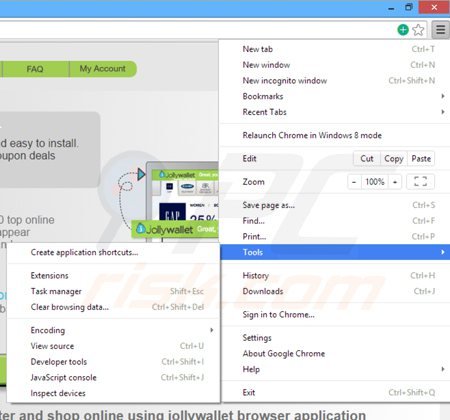 Click the Chrome menu icon
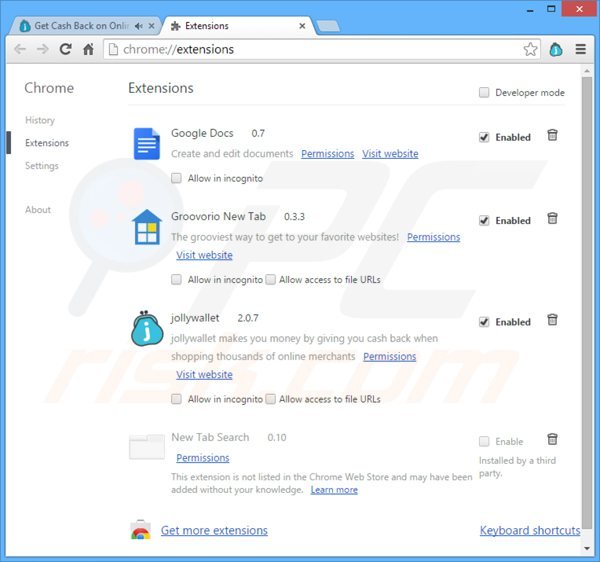
  (at the top right corner of Google Chrome), select "Tools" and click on "Extensions". Locate: "jollywallet", select this entry and click the trash can icon.
 Optional method:
If you continue to have problems with removal of the jollywallet , reset your Google Chrome browser settings. Click theChrome menu icon
Optional method:
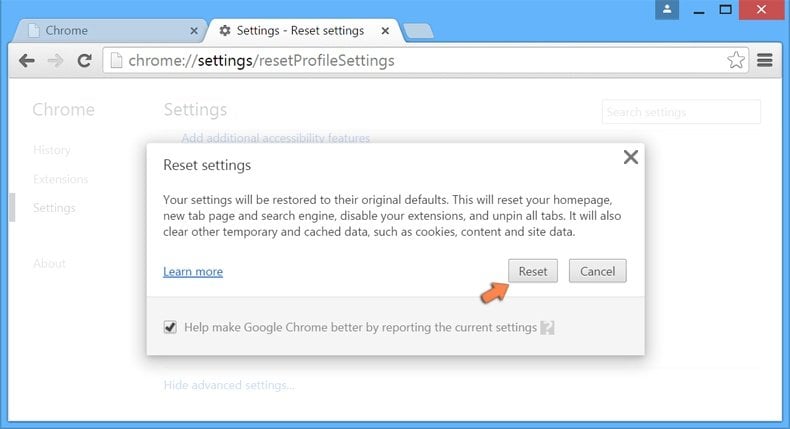
If you continue to have problems with removal of the jollywallet , reset your Google Chrome browser settings. Click theChrome menu icon 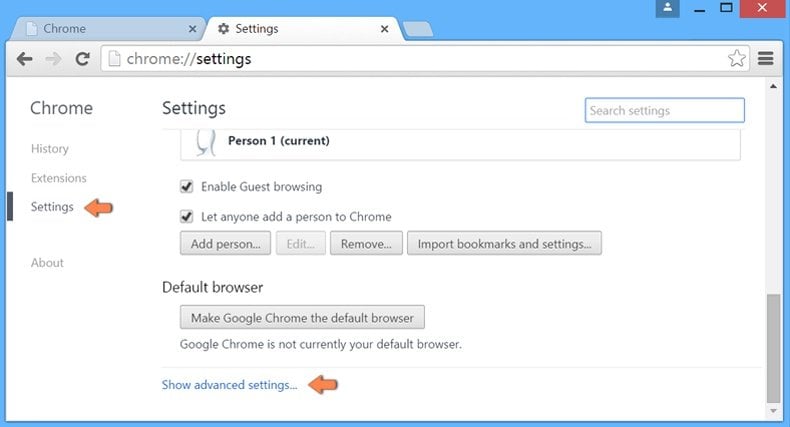 After scrolling to the bottom of the screen, click the Reset browser settings button.
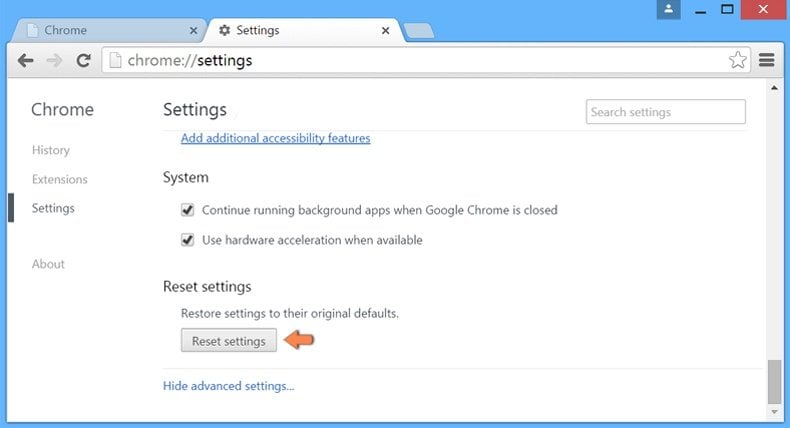 In the opened window, confirm that you wish to reset Google Chrome settings to default by clicking the Reset button.
 You are Done !!!!


